

how to create a split form in access
Split forms in Access are extremely useful. Unfortunately, they do not work when you place them inside a navigation form. Learn how you can create a VBA function that will simulate Access' split form functionalities and make it work even inside a navigation form.
Split form allows you to have two views of your records at the same time – form view and datasheet view. It allows you to have an overview of all your records while at the same time giving you an option to view and edit them one by one.
Unfortunately, split forms will not work when you put them inside a navigation form – something that baffles me. Good thing there's a workaround for this. Using VBA, you can create your own function that will be simulating Access' split form. Just follow the steps below.
Download Now
If you want to start to use the feature as soon as possible, then you can:
Download the Sample Database with VBA Codes Now
Otherwise, if you want to DIY, you can read the contents below.
Steps to Create Your Own Split Form in Access using VBA
1. Open your split form and update the Default View to Single Form. 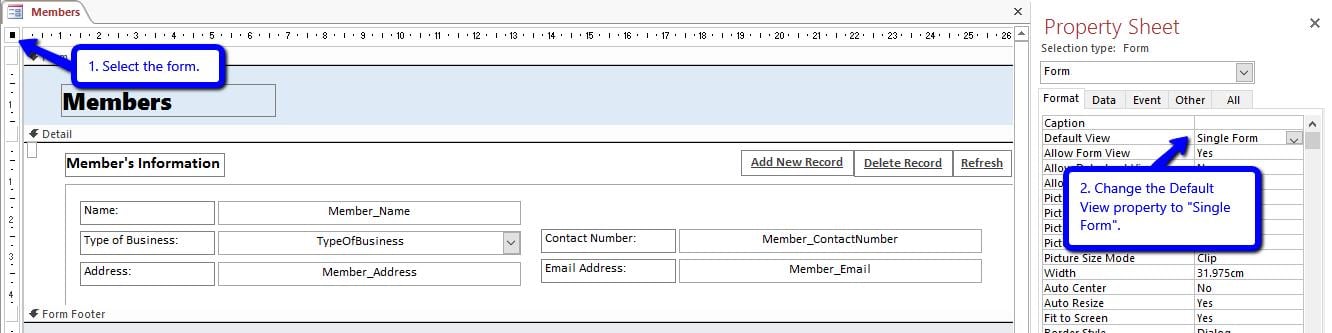
- Open your split form.
- While in design view, select the form.
- Go to the Property Sheet (ALT + Enter) > Form tab.
- Change default view to: Single Form.
- Close the form and save.
2. Create a copy of the form. This will serve as the datasheet view.
- Go to the navigation pane.
- Right click on your form and select Copy.
- Right click on a blank area in the navigation pane and select Paste.
- Change the Form name. Append it with "_Datasheet".
Example:
- Form: Members
- Copy of the Form: Members_Datasheet
3. Open the Datasheet Form and update its form view properties.
- Open the Datasheet form.
- While in design view, select the form.
- Go to the Property Sheet > Form tab.
- Update the following properties:
- Default View: Datasheet
- Allow Datasheet View: Yes
- Allow Form View: No
- Close the form and save.
4. Reopen the Main Form and add the Datasheet Form as subform.
- Open the main form (the one that was copied) in design view.
- Add a subform.
1. Click on 'Use an existing form'.
2.Select your datasheet form.
3.Click Next.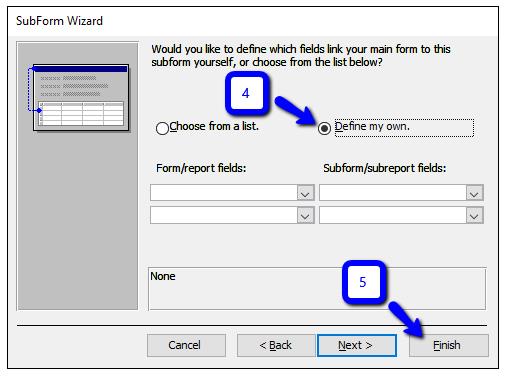
4.Select 'Define my own'.
5.Click Finish.
3. The datasheet form is now a subform of your main form. Adjust it to your desired size and position.
5. Finally, add the code.
- Open the VBA Editor (ALT + F11).
- Select the main form and paste the code that follows.
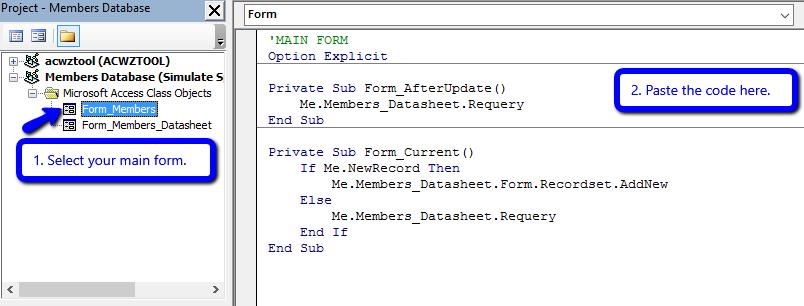
'MAIN FORM Option Explicit Private Sub Form_AfterUpdate() Me.Members_Datasheet.Requery End Sub Private Sub Form_Current() If Me.NewRecord Then Me.Members_Datasheet.Form.Recordset.AddNew Else Me.Members_Datasheet.Requery End If End Sub
- After copying the code, replace all instances of the word Members_Datasheet with the actual name of your datasheet form.
- When done, select your Datasheet Form from the Project menu and copy the code below.
'SUBFORM/DATASHEET FORM Option Explicit Private Sub Form_AfterUpdate() Me.Parent.Form.Requery End Sub Private Sub Form_Current() Dim pk_field As String, pk_tbox As Control Dim primaryKey As String, strSearch As String Set pk_tbox = Me.Member_ID 'textbox containing primary key * pk_field = "Member_ID" 'primary key field name * primaryKey = Nz(pk_tbox.Value, 0) 'change value to 0 if null pk_field = "[" & pk_field & "]" 'enclose field name with brackets If primaryKey <> 0 Then 'if not null (or not a new record) strSearch = pk_field & "=" & primaryKey Me.Parent.Recordset.FindFirst strSearch Else Me.Parent.Form.Recordset.AddNew End If End Sub
- Update the values for the following variables:
- pk_tbox – refers to the text box containing the primary key.
- pk_field – refers to the record source's primary key field.
They each have an asterisk (*) in the comment section so you can easily find them.
- When done, save the changes (CTRL + S) and close the VBA Editor.
Now, you can add your very own split form inside the navigation form. Try it out!
Fix Damaged Access Database (.accdb)
There can be a lot of reasons why an Access database becomes corrupt. Sadly, we don't have control on most of them. If it does happen to you, remember that there is still a way to recover it. DataNumen Inc. has created a software that performs accdb repair. Check it out.
Author Introduction:
Jayme Stack is a data recovery expert in DataNumen, Inc., which is the world leader in data recovery technologies, including sql recovery and excel recovery software products. For more information visit www.datanumen.com
how to create a split form in access
Source: https://www.datanumen.com/blogs/how-to-create-your-own-split-form-in-access-using-vba/
Posted by: baxterressat.blogspot.com
0 Response to "how to create a split form in access"
Post a Comment